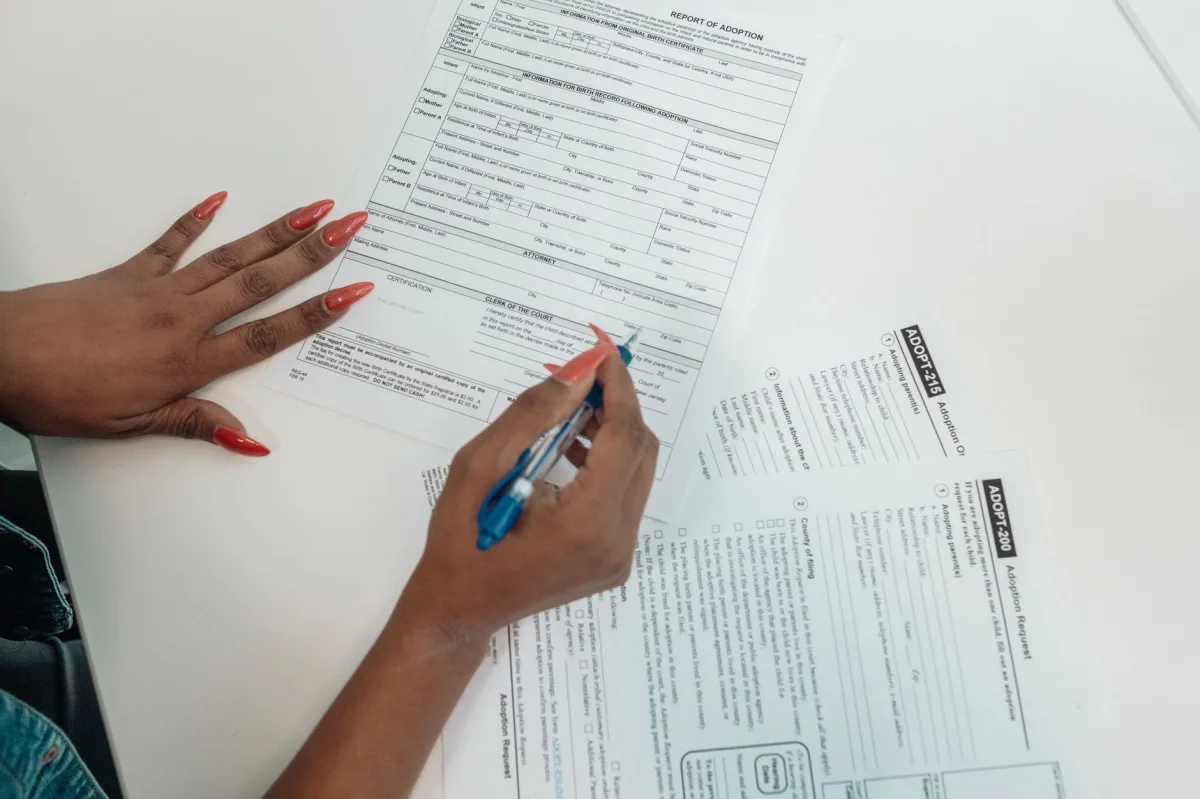
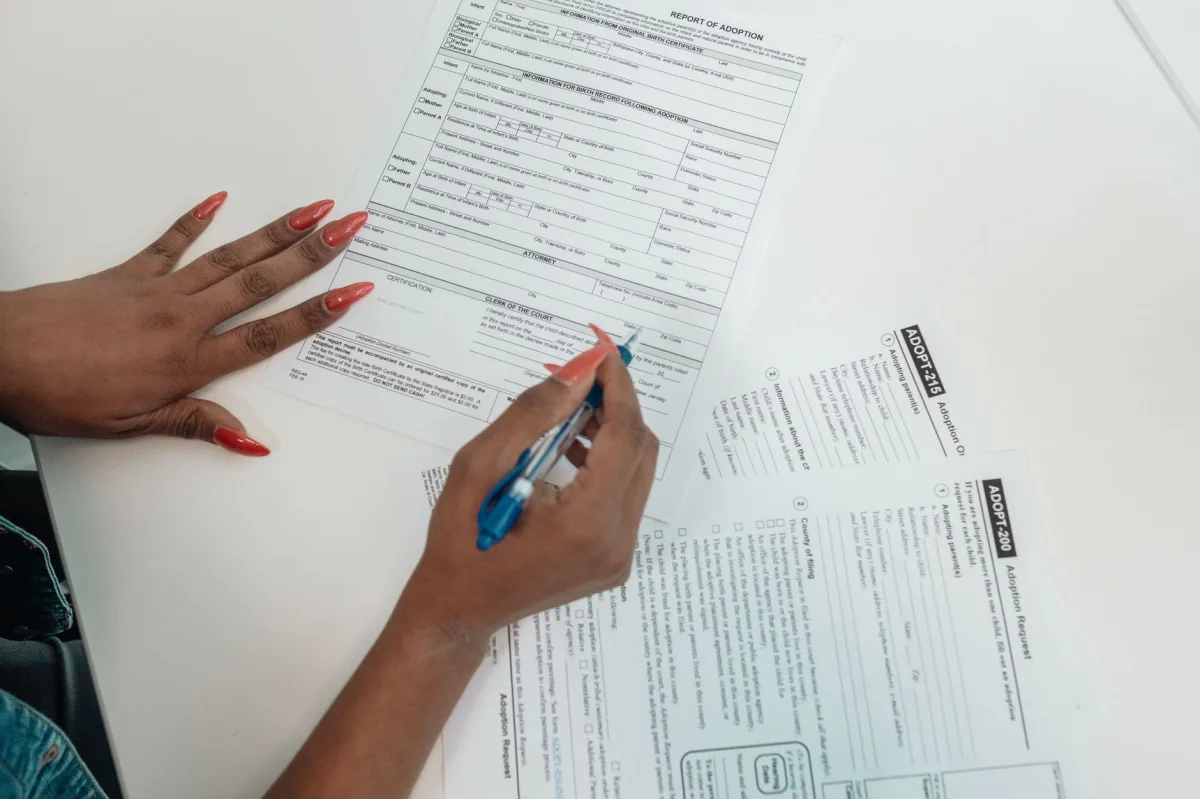
Knowing how to fill out a PDF form efficiently saves time, avoids printing, and keeps your data secure. In 2026 the process is smoother than ever, thanks to built‑in OS features, free desktop viewers, and AI‑driven automation. This guide walks you through every step—from spotting a fillable PDF to signing it on a phone, and even programming an agent to batch‑populate forms.
What Is a PDF Form and Why Fill It Digitally? (how to fill out a PDF form)
Definition: A PDF form is a Portable Document Format that embeds interactive fields—text boxes, checkboxes, dropdowns, and signature spots—so users can type or select answers directly inside the document.
PDFs preserve layout across platforms, so a form that looks perfect on a Windows PC will render identically on an iPad. The digital route eliminates the need for paper, ink, and scanning. It also reduces human error: auto‑complete and validation rules catch missing or malformed entries before you hit “send.” For government agencies, businesses, and schools, digital submission speeds processing and provides an audit trail that paper cannot match.
Definition of PDF Form
AcroForms, introduced in PDF 1.2, are the most common field type. They store field names, data types, and constraints inside the file. A newer XFA (XML Forms Architecture) format exists but is largely deprecated in favor of AcroForms, which all modern viewers support.
Digital vs. Paper
Paper forms require manual entry, scanning, and often OCR, which introduces recognition errors. Digital PDFs let you type straight into the field, validate dates, and apply a cryptographic signature. The result is a cleaner, faster workflow that aligns with remote‑work policies and sustainability goals.
2026 Trends: The Shift from PDF to Web Portals (how to fill out a PDF form)
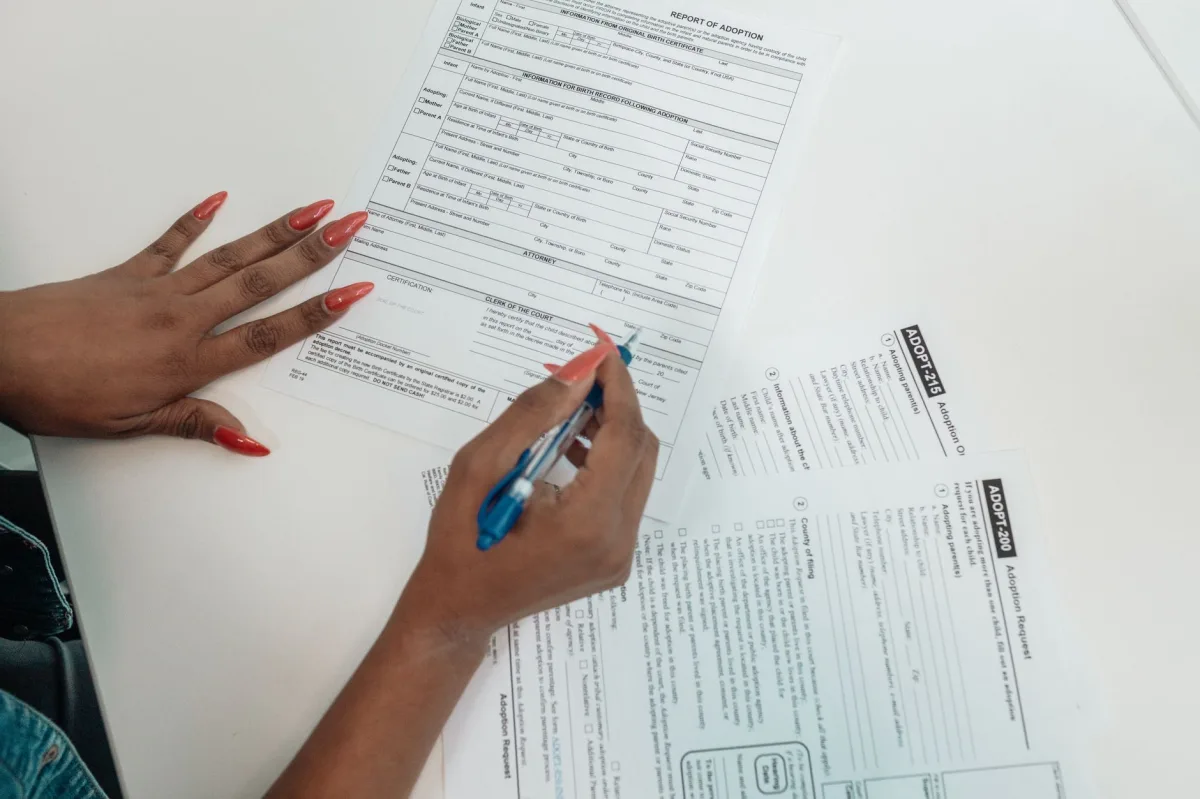
While PDFs remain ubiquitous, many agencies are migrating to dedicated web portals. The shift is driven by three forces.
Government Digital Services
U.S. VA Forms now require the latest version from the official VA Forms website; older PDFs are rejected. Similar moves are happening in India, where AIIMS NORCET applications are available only through the aiimsexams.ac.in portal, reducing the reliance on static PDFs.
AI Automation in Form Filling
Enterprises use AWS Strands agents combined with Anthropic’s Claude Sonnet model to parse field names, match them against CSV or SQLite records, and auto‑populate forms. This reduces manual entry for onboarding dozens of employees at once.
Security & Privacy Concerns
Uploading sensitive tax or medical PDFs to third‑party sites raises HIPAA and GDPR flags. Companies now favor offline tools—Adobe Reader, Apple Preview, or open‑source scripts—that keep data on the device until the final encrypted transmission.
Tools & Device Setup You Need
Before you start, verify that your hardware and software meet the baseline requirements.
Supported Devices (Desktop, Mobile, iOS, Android)
- Windows 11 or macOS 14 (Ventura) for full desktop support.
- iPhone 15 / iPad Pro with iOS 17 or iPadOS 17 for native Markup.
- Android 13+ devices—Google Files or Xodo work well.
Browser & App Choices
| Platform | Recommended Viewer | Key Feature |
|---|---|---|
| Windows | Microsoft Edge PDF Viewer | Built‑in form field highlighting, free. |
| macOS / iOS | Apple Preview & Markup | Seamless Apple Pencil signing. |
| Cross‑platform | Adobe Acrobat Reader DC | Robust validation, digital signatures. |
| Any | PDFescape (online) | No install, limited to 10 MB. |
Data Preparation (CSV, Contacts)
Gather repetitive info—name, address, tax ID—in a CSV file or your phone’s Contacts app. On iOS, add all details to the “My Card” entry; the Markup tool will suggest autofill values when you tap a field.
Step-by-Step: Filling PDFs with Free Software (how to fill out a PDF form)

The following walkthrough shows how to complete a typical tax form using three free tools. Choose the one that matches your device.
Using Adobe Reader DC
- Download Adobe Acrobat Reader DC from adobe.com and install.
- Open the PDF → “Fill & Sign” appears in the right pane.
- Click a text field; the cursor turns into an I‑beam. Type your answer.
- For checkboxes, simply click to toggle.
- When a signature field appears, click “Sign” → “Add Signature” → draw with your mouse or import an image.
- Save via File → Save As to preserve the interactive fields.
Using Microsoft Edge PDF Viewer
- Drag the PDF onto an open Edge window.
- Hover; interactive fields highlight in blue.
- Press Tab to cycle through fields—much faster than clicking.
- To add a signature, click the “Draw” icon in the toolbar and scribble with a stylus or mouse.
- Choose Save (Ctrl + S) to keep the form editable.
Using Apple Preview & Markup
- Open the PDF in Preview; select Tools → Annotate → Text if the file is flat.
- If the PDF is fillable, click a field; the keyboard appears.
- To sign, tap the + button, choose “Signature,” and draw with Apple Pencil.
- Resize the signature box, then tap “Done.”
- Save via File → Export as PDF to embed your answers.
Automated Filling with AI Agents
Manual entry works for one‑off forms, but batch tasks benefit from automation. Below is a minimal Python‑based workflow that uses AWS Strands agents and the Claude Sonnet LLM to populate a PDF from a CSV.
# Prerequisites
# - Python 3.10+
# - AWS CLI configured with Bedrock access
# - pip install boto3 pypdf2 pandas

import boto3, pandas as pd, PyPDF2

def load_form_fields(pdf_path):
 reader = PyPDF2.PdfReader(pdf_path)
 return {f['/T']: f for f in reader.get_form_text_fields().values()}

def fill_form(pdf_path, csv_path, out_path):
 data = pd.read_csv(csv_path).iloc[0] # simple one‑row example
 fields = load_form_fields(pdf_path)
 writer = PyPDF2.PdfWriter()
 reader = PyPDF2.PdfReader(pdf_path)

 for page in reader.pages:
 writer.add_page(page)

 for name, field in fields.items():
 if name in data:
 writer.update_page_form_field_values(
 writer.pages[0], {name: str(data[name])}
 )

 with open(out_path, "wb") as f:
 writer.write(f)

# Example usage
fill_form("tax_form.pdf", "employee_data.csv", "tax_form_filled.pdf")
The script extracts field names, matches them to CSV columns, and writes the answers back. For more sophisticated matching, replace the simple lookup with a Strands agent that performs fuzzy‑search across multiple spreadsheets and validates constraints before writing.
Real-World Tradeoffs: Speed vs. Accuracy
Choosing a method depends on how quickly you need the form and how much you can tolerate errors.
Flat PDFs vs. Interactive Forms
- Flat PDFs (scanned images) require overlay text or OCR, adding 2–3 minutes per page.
- Interactive forms let you type directly; the only delay is navigating fields.
Data Validation & Error Checking
Free viewers usually flag required fields but cannot enforce complex rules (e.g., SSN format). Paid tools like Adobe Acrobat Pro or Nitro PDF offer custom scripts that reject invalid entries on the fly.
Device Limitations
Phones are great for short, single‑page forms. Multi‑page contracts with many signatures are smoother on a laptop with a large monitor and a dedicated stylus.
Pros & Cons of Free vs. Paid Solutions
Pros of Free Tools
- No subscription—Adobe Reader, Edge, Preview are always free.
- Cross‑platform support covers most everyday use cases.
- Built‑in signature capture works for most non‑regulated documents.
Cons & Risks
- Limited ability to create or edit form fields; you cannot turn a flat PDF into a fillable one without a paid editor.
- Cloud‑based free services (PDFescape) impose file‑size caps and display ads.
- Advanced security (password protection, redaction) often requires a license.
Best Practices for Accuracy
- Enable “Auto‑Complete” in Adobe Reader preferences.
- Use a dedicated “Identity” profile that stores your address and tax ID.
- After filling, run a quick visual check before flattening.
Avoid These Common Pitfalls
Assuming All PDFs Are Fillable
If clicking a field does nothing, the document is flat. Switch to an annotation tool or run OCR before proceeding.
Missing Signature Fields
Some agencies embed a signature line as plain text. In those cases, use the “Add Signature” annotation rather than trying to type into a non‑interactive area.
Printing Issues
Printing a filled PDF that still contains active fields can cause the printer driver to drop entries. Always flatten or export to a raster PDF before printing official copies.
Choosing the Right Approach for Your Role
| Target Persona | Recommended Option | Key Reason & Real-World Benefit |
|---|---|---|
| Individual Taxpayer | Adobe Reader DC (free) | Fast field navigation, built‑in e‑signature, no cost for annual filing. |
| Small Business Owner | Nitro PDF (paid) | Batch processing, form creation, and PDF encryption for client contracts. |
| Government Worker | Microsoft Edge + Office 365 compliance add‑on | Enterprise‑grade audit trail, integrates with SharePoint for version control. |
| Developer | Python + Strands Agent (open‑source) | Automates bulk onboarding, reuses CSV data, reduces manual entry to seconds. |
Conclusion & Takeaway
Mastering how to fill out a PDF form in 2026 means picking the right tool for your device, preparing your data, and knowing when to automate. Free viewers cover 95 % of everyday cases; AI agents handle the heavy‑lifting for bulk jobs. By following the steps above you can complete, sign, and submit any PDF without ever touching a printer.
Verdict: For most users, Adobe Reader DC paired with native OS autofill offers the sweetest spot of speed, security, and zero cost. Developers and power users should invest in a Strands‑Claude pipeline for batch efficiency.