
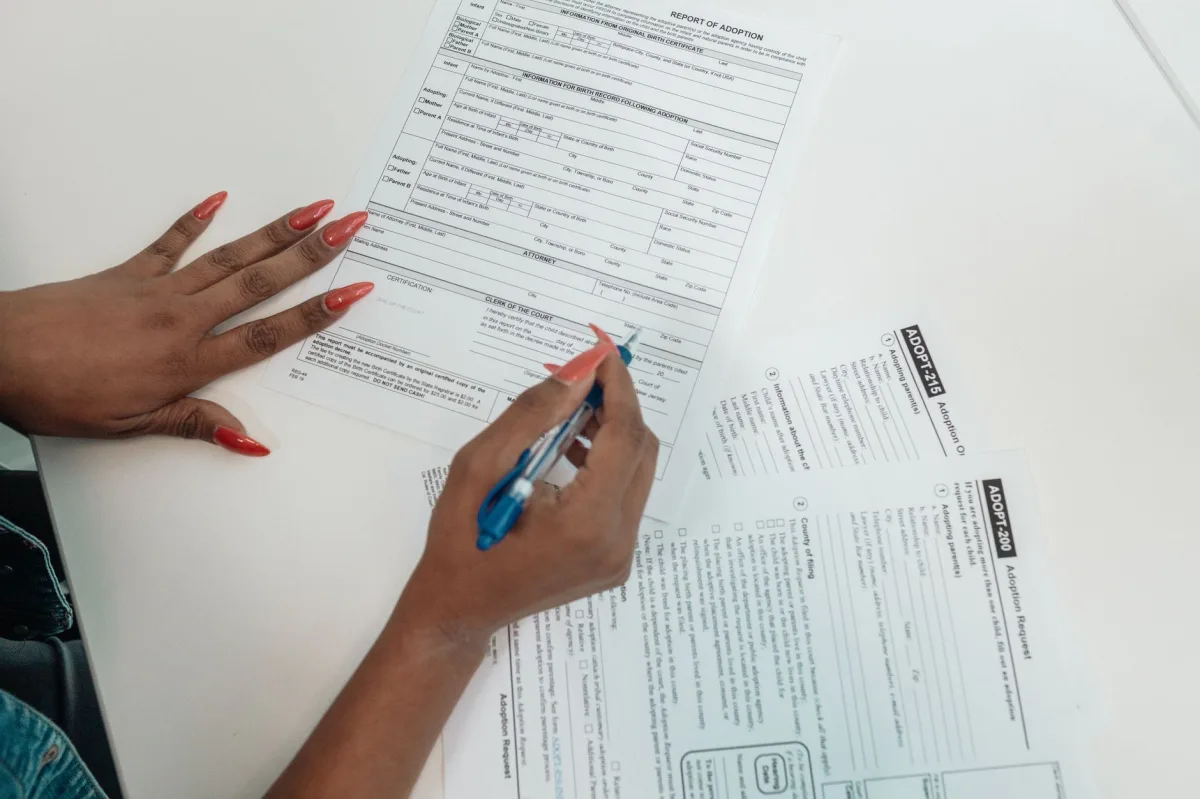
Last quarter, my colleague printed a 12‑page VA application three times because the PDF wouldn’t let her add a signature. The fix? Use a built‑in viewer that understands fillable fields. Below you’ll find a step‑by‑step method that works on a laptop, tablet, or phone without buying expensive software.
Quick Answer – How to Fill Out a PDF Form in 2026
What Is a Fillable PDF?
Definition: A fillable PDF is a regular PDF that contains interactive form fields—text boxes, checkboxes, dropdown menus, and signature placeholders—so you can type your answers directly into the file instead of printing, writing, and scanning.
How the Process Works Today
Modern operating systems embed a lightweight PDF engine that renders AcroForm widgets natively. When you tap or click a field, the OS supplies an on‑screen keyboard or a stylus input, records the data, and saves it back into the PDF’s internal structure. Most viewers also let you add a digital signature, encrypt the file, or flatten it to prevent further edits.
One‑Click Summary of Steps
- Download the latest version of the form from the official source.
- Open it with a native or web‑based PDF viewer that supports form fields.
- Tap or click each field, use autofill where possible, and add a signature.
- Flatten or password‑protect the file if required.
- Save with a new name and submit via email, portal upload, or secure share.
Why It Matters in 2026: Trends & Compliance
Digital Workflows and Remote Teams
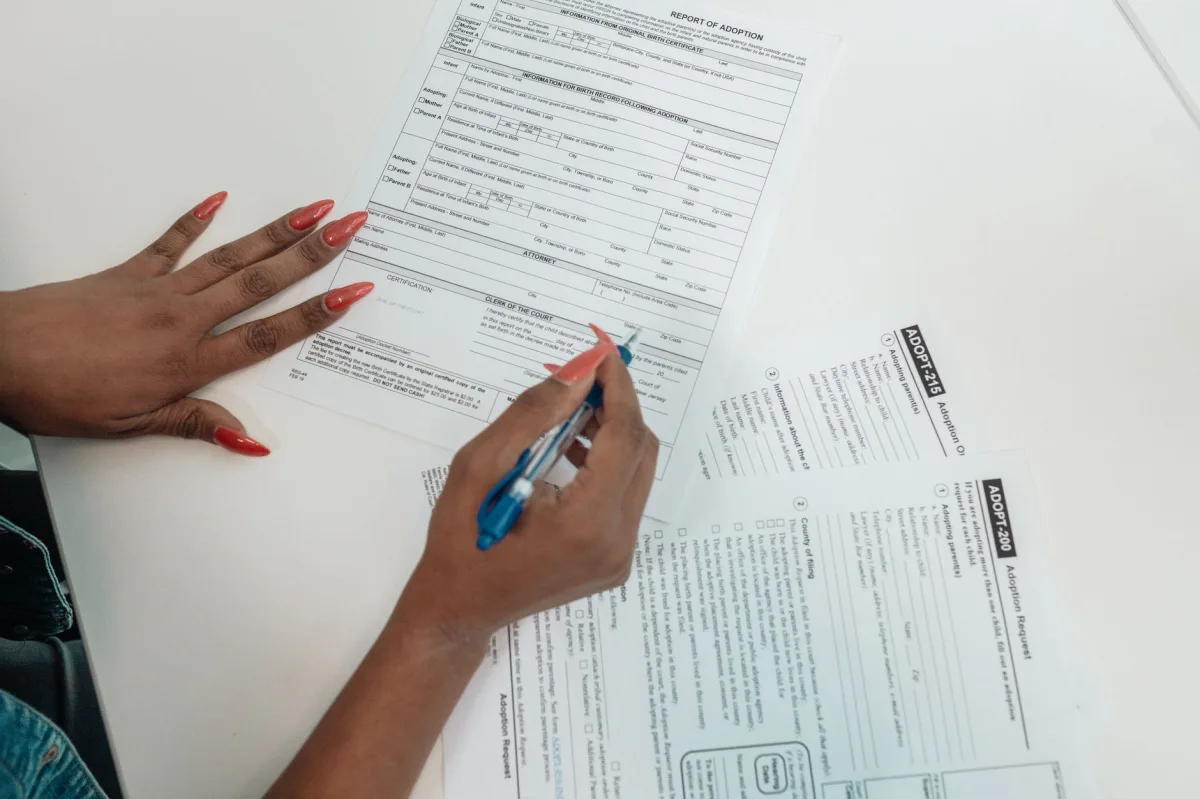
The shift to hybrid offices has pushed every department toward paper‑less processes. A single click can route a completed payroll form from a laptop in Berlin to a processor in Dallas, eliminating the need for physical mail.
Government and Healthcare Compliance
Regulators now mandate PDF/A‑2 for archival stability and PDF/UA for accessibility. Forms used in VA applications, AIIMS/NORCET nursing exams, and state health records must meet these standards; otherwise submissions are automatically rejected.
Security Standards (PDF/A, PDF/UA)
PDF/A guarantees that the document will render the same way years from now, while PDF/UA ensures screen‑reader compatibility. Both are baked into the latest versions of Adobe Acrobat Pro, Nitro PDF, and even free tools like Preview.
Prerequisites: Devices, PDFs, and Permissions
Supported Operating Systems
- macOS Ventura 13+ (Preview, Safari)
- iOS 17 / iPadOS 17 (Markup, Files)
- Windows 11 22H2 (Microsoft Edge, Nitro PDF)
- Android 14 (Google Drive PDF Viewer, Adobe Acrobat Reader)
- Linux distributions with LibreOffice 7.6 or PDFescape web access
Downloading the Latest Form Version
Always pull the file from the official website minutes before you start. For VA forms, the portal now forces a fresh download each session; older copies trigger “form version mismatch” errors.
Permission Flags and Read‑Only Modes
A PDF can be locked with “no‑modify” permissions. If you encounter a greyed‑out field, open the file in Adobe Acrobat Reader, choose File → Properties → Security, and request “Fill‑in” rights from the sender.
Free Built‑in Tools – How to Fill Out a PDF Form Without Extra Software
macOS Preview – Text, Signature, and Markup
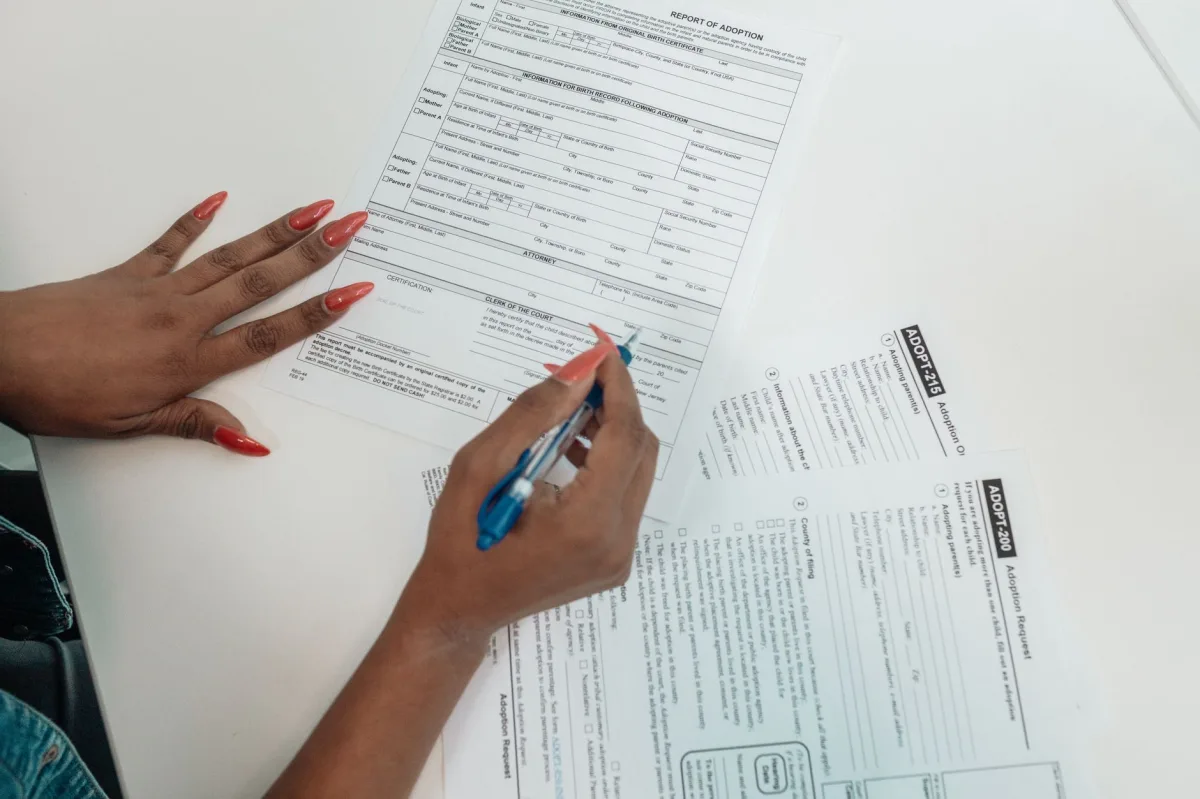
Preview automatically detects form fields. Click a box, start typing, and press Command + S to save. To add a signature, open the Markup toolbar (the pen icon), choose Signature → Create Signature, then draw with the trackpad or import an image.
iOS/iPadOS – Touch, Pencil, and Markup
Tap the PDF in Files or Mail; it opens in Markup. Each field becomes a tap target. The keyboard offers predictive text, and the “My Card” entry in Contacts can autofill name, address, and phone number with one tap.
Microsoft Edge – Form Filling & PDF Sign
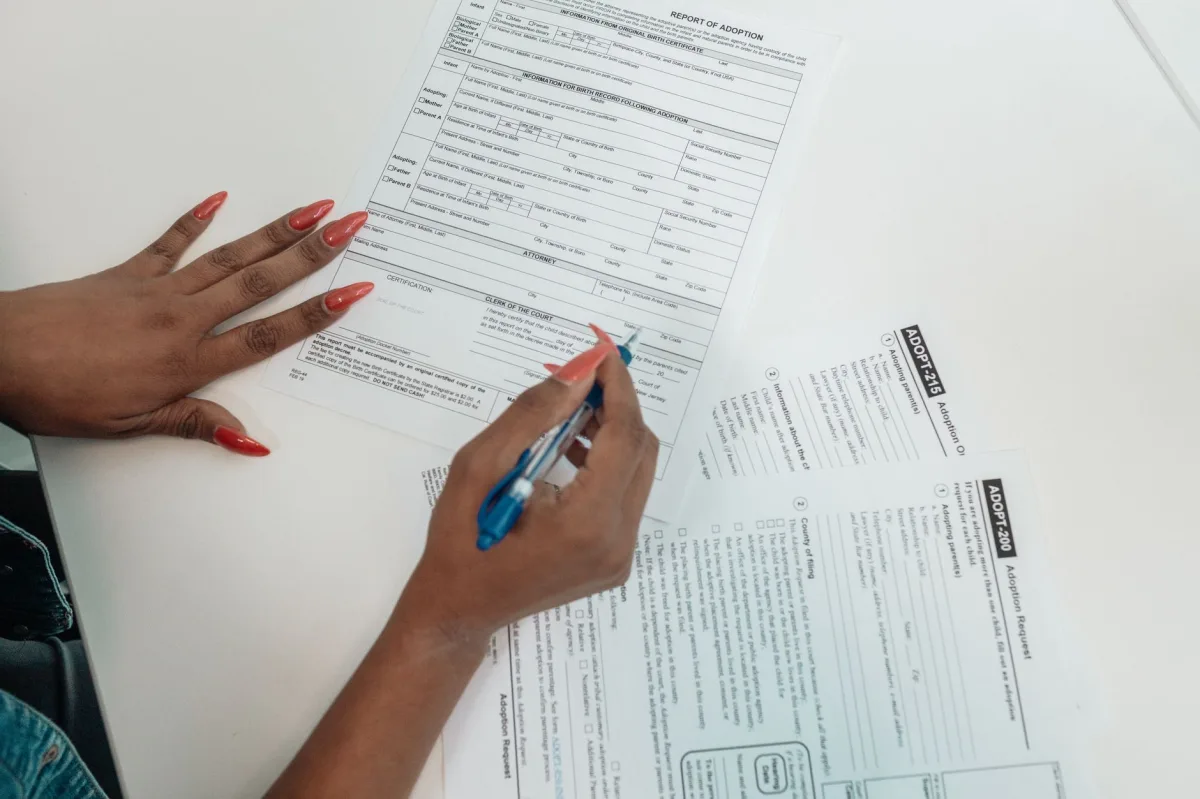
Edge’s built‑in PDF viewer supports text entry, checkboxes, and a “Draw” tool for signatures. Right‑click the file, select Save As to preserve your changes.
Android’s Built‑in PDF Viewer (Optional)
Google Drive’s viewer now includes a lightweight form‑field layer. For more complex forms, install the free Adobe Acrobat Reader from the Play Store.
Web‑Based & Desktop Alternatives – PDFescape, LibreOffice, Nitro, PDF Candy
PDFescape – Free Online Editor
Navigate to pdfescape.com/open, upload the form (max 10 MB, 100 pages), and use Insert → Form Field to add missing fields. The “Save & Download” button returns a fully fillable PDF.
LibreOffice Draw – Desktop Editing
Open the PDF in Draw, right‑click a blank area, choose Insert → Form Control, then drag a Text Box or Checkbox onto the page. Save as PDF to retain the new fields.
Nitro PDF – Feature‑Rich Free Trial
Nitro offers a 14‑day trial with full form‑creation, digital signatures, and password protection. The ribbon UI mirrors Microsoft Office, making the learning curve shallow for power users.
PDF Candy – One‑Click Conversion
PDF Candy’s “Compress PDF” tool reduces large forms under 10 MB, a common upload limit for government portals. The web app also supports “Add Watermark” and “Protect PDF” in a single workflow.
Advanced Topics – Signing, Encryption, and Accessibility
Creating a Digital Signature (Adobe, Preview)
Adobe Acrobat DC’s “Fill & Sign” wizard stores a certificate‑based signature that complies with the ESIGN Act. Preview’s “Create Signature” stores a vector image; both methods embed a cryptographic hash that proves authorship.
Adding Password Protection
In Nitro, choose File → Security → Encrypt with Password. Use a strong passphrase (minimum 12 characters, mixed case, numbers, symbols). The same workflow exists in Adobe Acrobat under Protect → Encrypt.
Accessibility Features (Alt Text, Tagging)
PDF/UA‑compliant forms require every field to have a descriptive tag. In Adobe Acrobat, open the “Reading Order” pane, right‑click a field, and select Set Alternate Text. Screen readers like VoiceOver on iOS will then announce the label correctly.
Automation Without Code – AI‑Powered Form Completion
Strands Agents – Conversational Form Completion
Strands Agents orchestrates a dialogue, pulls user data from a SQLite database, and fills the PDF automatically. The workflow runs on AWS, incurs token‑based charges for the Claude Sonnet model, and finishes in seconds.
Amazon Bedrock + Claude – Auto‑Fill Workflow
After provisioning Bedrock access, you can prompt Claude with a simple instruction such as “Fill the attached NORCET nursing form using the profile of candidate #12345.” The model returns a filled PDF and flags any missing fields for clarification.
For Developers – Where to Find Updated API Details
The current Claude API uses client.messages.create with a messages array instead of the older prompt parameter. The model identifier for 2026 is claude-3-sonnet-202406. Documentation is available on the Anthropic developer portal.
Real‑World Tradeoffs: Speed, Security, and Compatibility
Speed vs. Feature Set
Native tools (Preview, Edge) win on speed—no install, instant launch. Third‑party editors add OCR, batch signing, and PDF/A conversion but require a few extra clicks.
Security Risks of Free Tools
Web‑based editors like PDFescape process files on external servers. For sensitive health forms (e.g., AIIMS/NORCET), keep the data offline or use a self‑hosted LibreOffice instance.
Compatibility with Government Systems
Many agencies still require PDF/A‑2 compliance. Nitro and Adobe can export to PDF/A with a single click; Preview does not yet offer a built‑in PDF/A exporter, so you’ll need a conversion step using LibreOffice or a dedicated converter.
Best Practices & Common Mistakes
Save Incrementally
Use “Save As” after each major section to avoid overwriting the original blank template. Keeping a version history makes it easy to revert if a field is filled incorrectly.
Verify Field Types
Ensure a “Date” field is really a date widget; otherwise the receiving system may reject the entry. A quick way to test is to type a date in the format the portal expects and watch for validation warnings.
Check for Updates
Form providers often release a new revision. Set a calendar reminder to re‑download the form 24 hours before a deadline, especially for government or insurance submissions.
Avoid Printing & Scanning
Scanning introduces OCR errors and bloats file size. Stick to digital signatures whenever the portal accepts them.
Secure Transmission
When sending a completed form, use the portal’s built‑in upload feature or an encrypted email attachment. Avoid sending PDFs over unsecured messaging apps.
Who Should Use Which Approach? (Persona Table)
| Target Persona | Recommended Option | Key Reason & Real‑World Benefit |
|---|---|---|
| Remote Worker | Microsoft Edge + OneDrive sync | Zero‑install, instant sharing, auto‑versioning across Windows and macOS. |
| Healthcare Provider | Adobe Acrobat Pro (PDF/A‑2 export) | Meets HIPAA‑level encryption and PDF/A compliance required by hospital portals. |
| Government Employee | Nitro PDF trial + PDF/A conversion | Full PDF/UA tagging, batch password protection, and easy flattening for VA forms. |
| Student / Applicant | iOS Markup + Apple Pencil | Free, intuitive autofill from Contacts, and legally acceptable handwritten signature. |
| Legal / Finance Professional | Adobe Acrobat Pro with certificate‑based signatures | Provides audit‑trail metadata required for contracts and regulatory filings. |
| IT Administrator | LibreOffice Draw (offline) + PDFescape (fallback) | Keeps sensitive data on‑premises while still offering a quick web edit option for occasional users. |
Final Verdict
Summary of Recommendations
- For everyday tasks, open the PDF in the OS‑native viewer (Preview, Edge, Markup).
- When compliance matters, use Adobe Acrobat Pro or Nitro PDF to generate PDF/A‑2 and PDF/UA tags.
- If you need automation, deploy a Strands Agent backed by Amazon Bedrock and Claude.
- Never reuse an old copy of a government form; always download the latest version.
Quick Checklist
- Download the freshest form.
- Open with a tool that supports fillable fields.
- Use autofill from Contacts or a password manager.
- Add a digital or stylus‑drawn signature.
- Flatten or password‑protect if required.
- Save with a new filename and verify on a second device.
- Submit via the prescribed portal.
Next Steps
Now that you know how to fill out a PDF form on any device, pick the tool that matches your workflow, follow the checklist, and eliminate paper from your to‑do list.