
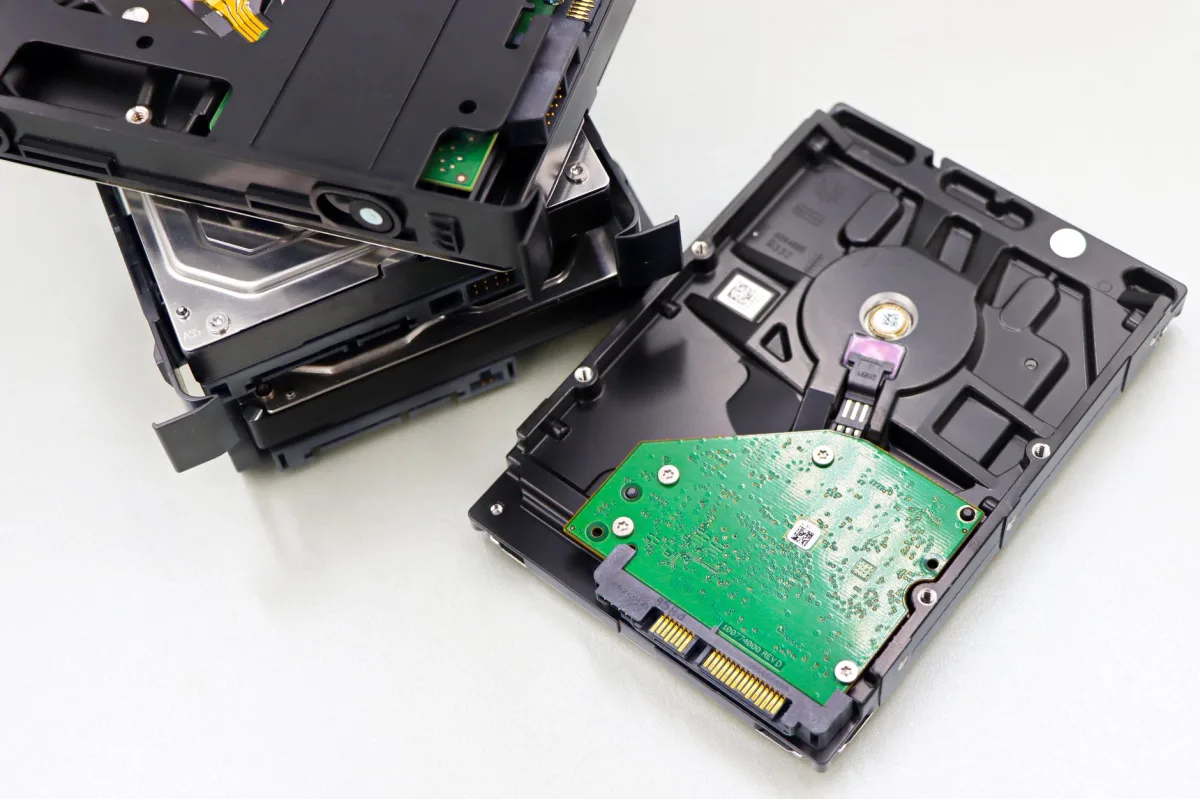
When my workstation crashed in March 2024, I discovered hours of research data were gone. The culprit? A silent HDD that had been “Healthy” in every GUI check until the platter finally gave out. That experience taught me that knowing how to check hard drive health isn’t a nice‑to‑have skill—it’s the first line of defense against catastrophic data loss.
Overview: What Is Hard Drive Health and Why It Matters in 2026
Defining Drive Health
Definition: Drive health is the current operational condition of a storage device as reported by its built‑in Self‑Monitoring, Analysis, and Reporting Technology (SMART) and any supplemental diagnostics the manufacturer supplies.
Common Symptoms of Failure
- Clicking or grinding noises from a spinning platter
- Sudden slow‑down during file transfers
- Frequent blue‑screen errors that reference “disk” or “I/O”
- Unexplained file corruption after a power surge
Why 2026 Trends Change the Hard Drive Health Equation
NVMe SSDs dominate new builds, yet many users keep SATA HDDs for bulk archives. USB‑C enclosures now advertise “SMART passthrough,” but a sizable share of consumer cases still block SMART commands. Because of that split, you must verify both the interface and the drive itself when you learn how to check hard drive health.
Key Technologies: HDD vs SSD vs NVMe – What to Expect
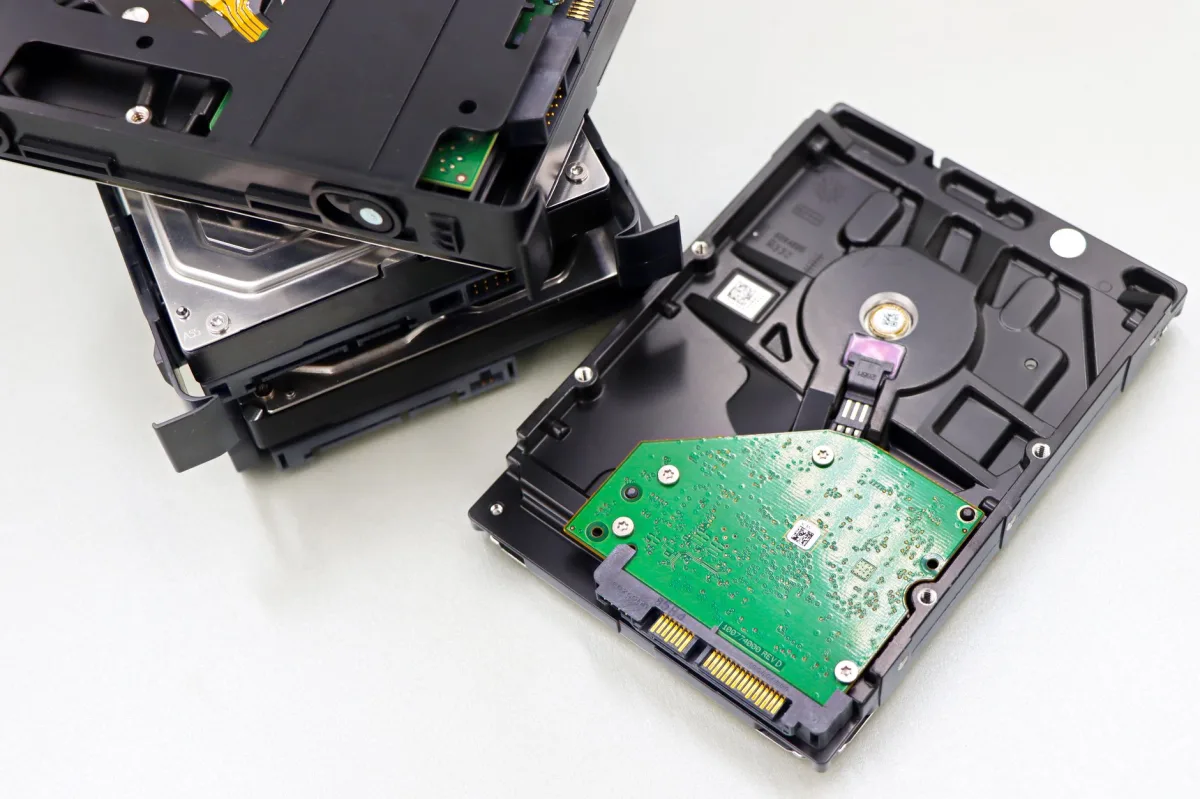
Mechanical vs Solid‑State Wear
HDDs degrade through head‑crash incidents, bearing fatigue, and magnetic decay. The most telling SMART flags are Reallocated Sector Count and Current Pending Sector. SSDs, by contrast, track wear‑leveling with Percentage Used and Available Spare. A sudden rise in Uncorrectable Error Count on an SSD usually means a flash block has failed beyond remapping.
NVMe Performance Impact
NVMe 2.0 devices expose a “Critical Warning” byte that aggregates temperature, media errors, and endurance alerts. Because NVMe talks directly over PCIe, latency is negligible, but sustained temperatures above 70 °C can trigger throttling that looks like a health problem.
- Read the NVMe SMART log (e.g.,
nvme smart-log) for precise temperature and error counters. - Watch the “Critical Warning” bit; a set value indicates either temperature excess, media error, or endurance breach.
Hybrid Drives and Their Risks
Hybrid SSHDs blend a small NAND cache with a magnetic platter. Their SMART data mixes mechanical and flash metrics, which can confuse generic tools. For these drives, run a traditional HDD check to catch reallocated sectors and an SSD‑style endurance check to watch the cache’s Percentage Used.
Prerequisites & Tools You Need Before You Start (how to check hard drive health)
Hardware Setup: Internal vs External
- Internal SATA or NVMe: direct motherboard connection, full SMART access.
- External USB‑C enclosure: verify that the enclosure advertises “SMART passthrough” before testing.
Operating System Compatibility
Windows 11, macOS Sequoia (version 15), and major Linux distributions all support the smartctl utility from the smartmontools package. For a graphical experience on Windows, download CrystalDiskInfo.
Essential Software List
| Tool | Free / Paid | Best For |
|---|---|---|
| CrystalDiskInfo | Free | Quick health snapshot, temperature monitoring |
| GSmartControl | Free | Deep SMART attribute analysis, error‑log review |
| Hard Disk Sentinel (trial) | Paid (trial) | Background alerts, long‑term logging |
| Samsung Magician / SanDisk Dashboard | Free | Vendor‑specific firmware updates and endurance stats |
Step‑by‑Step: Using CrystalDiskInfo for Quick Checks

Installing and Launching
Download the installer from the official site, run it, and launch the program. The main window lists every attached drive with a color‑coded health bar (green = good, yellow = caution, red = bad).
Interpreting SMART Attributes
- Health Status: “Good” means no thresholds have been crossed, but glance at the critical numbers anyway.
- Reallocated Sector Count: Anything above 0 on an HDD is a red flag.
- Percentage Used (SSD): Values above 80 % indicate you’re nearing the write‑endurance limit.
- Temperature: Keep HDDs under 45 °C and SSDs under 70 °C for optimal lifespan.
Setting Up Alerts
Open the “Function” menu, enable “Alert when temperature exceeds,” and set a threshold (e.g., 50 °C for HDD, 75 °C for SSD). CrystalDiskInfo will pop a Windows notification the moment the drive crosses the limit.
Deep Dive: GSmartControl and smartmontools for Advanced Diagnostics
Installing GSmartControl on Windows/Linux
Grab the latest release from the GSmartControl download page. The installer adds a shortcut that automatically detects all SMART‑capable devices.
Running Full Self‑Tests
sudo smartctl -t long /dev/sda # Linux example
smartctl -t long \\.\PhysicalDrive0 # Windows example
A long test scans the entire media surface. Expect 1–4 hours depending on capacity. The tool writes the result to the error log, which you can view under the “Self‑tests” tab.
Analyzing Error Logs
Look for entries marked “Completed: read failure” or “U‑DMA CRC Error Count.” Those usually point to cable or controller problems rather than media wear. If the log shows “Media and Data Integrity Errors,” the drive itself is failing.
Vendor‑Specific Apps: When They Help and When They Mislead
Samsung Magician vs Third‑Party
Samsung Magician reads the same SMART data as CrystalDiskInfo but adds firmware flashing and a “Performance Optimization” routine. It omits the “Current Pending Sector” field, which can hide early HDD‑style problems on hybrid drives.
SanDisk Dashboard Limitations
SanDisk Dashboard shows total data written and a “Health” percentage, but it does not report a remaining lifetime beyond 1 000 days for drives that report >95 % health. Pair it with a generic tool to see the raw Available Spare count.
Hard Disk Sentinel Capping Issues
The trial version displays a “Remaining Lifetime” bar that stops at 100 % for SSDs, even when the Percentage Used is 95 %. This ceiling can mislead users into postponing replacement.
Real‑World Tradeoffs: How Accurate Is SMART in 2026?
Mechanical Failures Beyond SMART
Head crashes, motor seizures, and sudden power surges often bypass SMART thresholds. A 2025 Backblaze data‑center incident involving a 2‑TB HDD showed “Healthy” in SMART while the platter suffered a head impact; the drive failed before any warning appeared. Backblaze’s 2025 reliability report estimates that SMART predicts roughly 60‑70 % of HDD failures.
Firmware Corruption Cases
Some NVMe drives suffered firmware bugs that caused intermittent read errors without triggering any SMART warning. Updating firmware via the vendor app is the only reliable fix in those scenarios.
Power Surges and Silent Damage
A brief voltage spike can fry the drive’s PCB while the platters remain intact. SMART will still read “Healthy” because the error lives in the controller, not the media.
Best Practices: Maintaining Health and Preventing Data Loss (how to check hard drive health)
Regular Backups
Adopt the 3‑2‑1 rule: three copies, two on different media, one off‑site. Backups are the only safety net when SMART lies.
Temperature Monitoring
Use a fan curve that keeps HDDs under 45 °C and SSDs under 70 °C. Most motherboards let you set alerts in the BIOS; otherwise, Hard Disk Sentinel can email you when thresholds are crossed.
Firmware Updates and Power Protection
- Check the vendor’s website monthly for firmware releases.
- Install a quality UPS to smooth out power spikes.
- Enable Windows “Turn off hard disk after” setting to avoid unnecessary spin‑ups.
Common Mistakes & Troubleshooting
Misreading Pending Sectors
A “Current Pending Sector” count of 1 may look harmless, but it means the drive has already found a sector it can’t reliably read. Back up immediately and run a full surface scan.
Ignoring Reallocated Sectors
Even a single reallocated sector indicates permanent damage. Replace the drive before the count climbs.
Relying on a Single Tool
CrystalDiskInfo shows the health bar, GSmartControl reveals the error log, and the vendor app provides firmware status. Use at least two of them to avoid a false sense of security.
Who Should Use Which Approach? Persona Table
| Target Persona | Recommended Option | Key Reason & Real‑World Benefit |
|---|---|---|
| Home User | CrystalDiskInfo + SanDisk Dashboard (if applicable) | Free, quick visual health; vendor app adds firmware updates. |
| Small Business | Hard Disk Sentinel (trial or paid) + GSmartControl | Background alerts and detailed logs protect multiple workstations. |
| Enterprise | smartmontools scripted monitoring + NVMe smart‑log via nvme |
Automation integrates with existing monitoring stacks (e.g., Zabbix). |
| Gamer | CrystalDiskInfo + Samsung Magician (for NVMe SSDs) | Fast read of temperature and endurance ensures no mid‑session stalls. |