

When an update stalls on a Windows 11 workstation, the error code on the screen can feel like a dead‑end. This guide explains how to fix Windows Update errors step‑by‑step, without losing data or breaking installed apps. In 2026 the update engine has grown more complex—Windows Update Orchestrator, the Arbiter, and the new calendar‑based pause UI all add layers that can misbehave. Below you’ll find the exact steps that work on Windows 11 24H2, 25H2, the illustrative 26H1 builds, and supported Windows 10 versions.

Quick Overview: How to Fix Windows Update Errors
What the error means
Most failure codes (0x80070002, 0x800f081f, 0xC1900101, 0x80073712) point to one of three culprits:
- Corrupt update cache. The
SoftwareDistributionfolder or the component store (WinSxS) has missing files. - Driver or firmware mismatch. OEM BIOS/UEFI, SSD firmware, or a specific driver (e.g., Intel Innovation Platform Framework) is out of date, causing the installer to abort.
- Secure‑Boot or BitLocker changes. A new Secure Boot certificate or an EFI‑partition size issue triggers a recovery prompt.
Immediate fix steps
- Run the built‑in Windows Update Troubleshooter (Settings → System → Troubleshoot → Other troubleshooters → Windows Update).
- If the troubleshooter reports “cannot connect to Windows Update service”, verify that the Windows Update and BITS services are set to Automatic and are running.
- When the error code is 0x80070422, enable the services via
services.mscor the PowerShell snippet below.
# Enable core update services
Get-Service -Name wuauserv,bits,cryptsvc,WaaSMedicSvc |
 ForEach-Object { Set-Service -InputObject $_ -StartupType Automatic -Status Running }
If the problem persists, move on to the deeper fixes below.
Why Windows Update Errors Matter in 2026
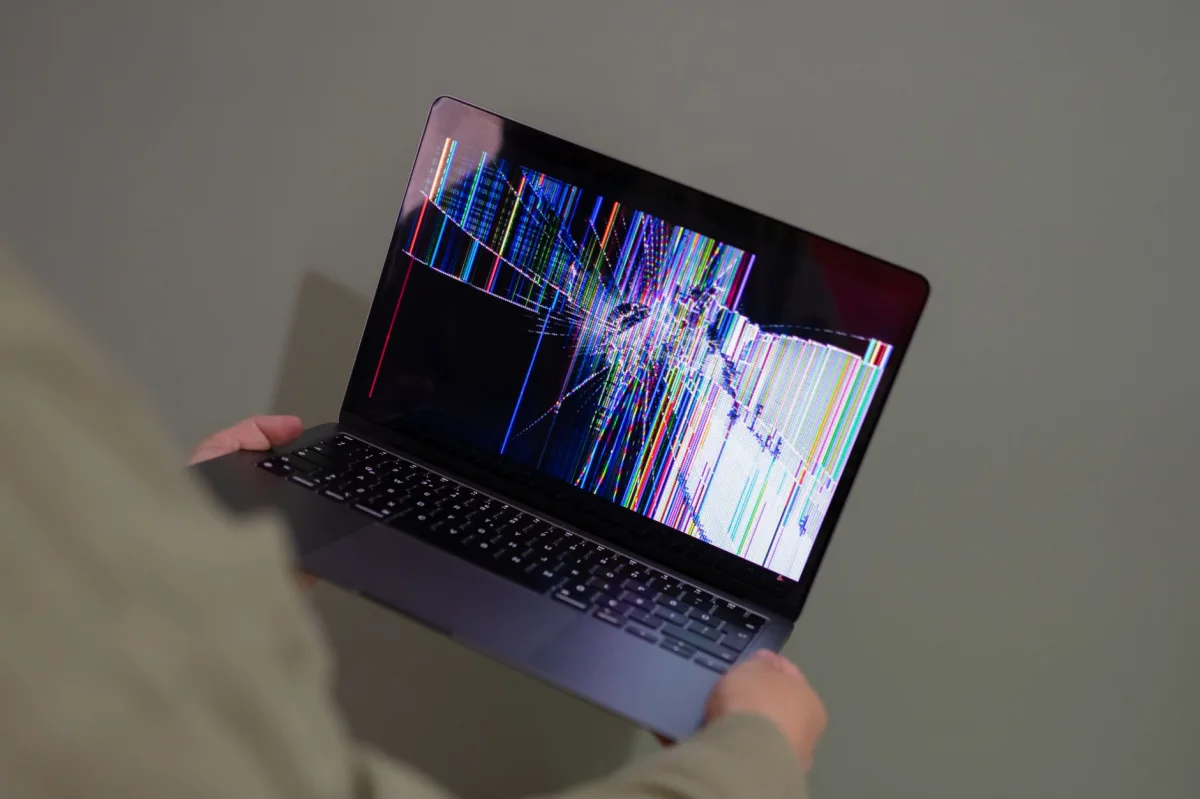
Security implications
Patch Tuesday each month delivers fixes for high‑severity bugs like PrintNightmare (CVE‑2021‑34527) and lingering SMB flaws that once powered WannaCry. Skipping a security update leaves a system exposed to ransomware that can encrypt files in minutes. Microsoft’s Security Intelligence Report (June 2026) notes that devices that miss a single critical patch see roughly a 20‑25 % rise in exploit attempts within the following two weeks.
Productivity impact
Enterprise surveys conducted by Microsoft in 2025 estimated an average of 1.8 hours of lost work per failed update. The loss breaks down as follows:
| Cause | Typical downtime |
|---|---|
| Unexpected restart | ≈ 45 min |
| BitLocker recovery loop | ≈ 30 min |
| VPN or OneDrive sync failure | ≈ 25 min |
Trends in Patch Tuesday
In early 2026 the first cumulative update for Windows 11 25H2 (illustrative example KB5089549) caused a spike in BSODs on Dell Precision workstations until Microsoft released the corrective KB5121767. The pattern shows that the first‑week rollout carries the highest risk, which is why many IT pros now pause updates for 10‑14 days before deploying.
Prerequisites: What You Need Before Troubleshooting
Administrative rights
You must be logged in as a local administrator or have an elevated token via Run as administrator. Without this, attempts to rename C:\Windows\SoftwareDistribution or uninstall a KB will be blocked.
Backup options
- Full system image using Windows Backup or a third‑party tool.
- Export BitLocker recovery keys to your Microsoft account (aka.ms/recoverykey) or Azure AD.
- Copy the
%USERPROFILE%\Documentsfolder to an external drive for a quick safety net.
System health check
Run sfc /scannow only after confirming the update services are running. Then verify free space on the EFI System Partition (minimum 100 MB) because a cramped ESP can block Secure Boot certificate updates—a known cause of post‑update boot failures on HP EliteBook 840 G10.
Step 1: Uninstall the Latest Cumulative Update Safely

Access Update History
Open Settings → Windows Update → Update history → “Uninstall updates”. The list shows the most recent quality update (e.g., illustrative KB5094126) with its installation date.
Remove the problematic KB
- Select the offending KB and click Uninstall. Windows will prompt for a restart; choose “Update and shut down” from the Power menu to avoid a partial rollback.
- After the reboot, confirm the update is gone by re‑opening the Update history page.
Reboot and verify
Once the bad KB is removed, pause updates for at least five days (the new calendar UI lets you set a specific end date up to 35 days). This buffer prevents the same update from reinstalling automatically.
Step 2: Leverage Hidden Windows Tools
Get Help app
The built‑in Get Help app now includes a “Windows Update” troubleshooting wizard that can automatically run the Windows Update Troubleshooter, reset the component store, and even launch the Recovery Environment (WinRE) if the OS fails to start.
Recovery Environment uninstall
If the PC won’t boot, hold Shift while selecting Restart from the sign‑in screen. Choose Troubleshoot → Advanced options → Uninstall latest quality update. This method removes the KB before any BitLocker prompt appears, preserving your encrypted drive.
Windows Insider Preview ring
Enroll a secondary device in the Release Preview ring (Microsoft Insider blog) to receive hotfixes a week early. If a known‑bad KB is being re‑released, the preview build will already contain the corrected version.
Step 3: Diagnose Firmware and Driver Issues
Check SSD firmware
Outdated SSD firmware can cause “device not ready” errors during the update’s file‑copy phase. Use the OEM’s support utility (Dell SupportAssist, HP Support Assistant) to verify you’re on the latest firmware before applying a new cumulative update.
Inspect EFI partition size
Secure Boot certificate updates need at least 100 MB of free space on the ESP. If the partition is smaller, you’ll see error 0x800f081f during the install. Resize the ESP from a Linux live USB using gdisk or, on a secondary Windows installation, run diskpart:
diskpart
select disk 0
list partition
select partition X # ESP number
shrink desired=20 # free up 20 MB
create partition efi size=100
format quick fs=fat32 label="System"
exit
Identify driver conflicts
Recent Dell reports linked the illustrative KB5101650 to performance degradation caused by the Intel Innovation Platform Framework Processor Participant driver. Installing the corrective KB5121767 (Forbes article) restores normal CPU scheduling.
Step 4: Apply Best‑Practice Update Management
Delay non‑critical updates
Use the new calendar‑based pause feature to hold off on feature updates for 2‑4 weeks after Patch Tuesday. Critical security patches still install automatically, preserving compliance.
Use WSUS or Microsoft Update settings
Enterprises should decline problematic KBs (e.g., illustrative KB5094126) on a per‑group basis in WSUS. For small offices, the “Advanced options” page lets you set a “Defer feature updates” period of up to 365 days.
Schedule restarts
The Power menu now separates “Restart” from “Update and restart”. Choose “Update and shut down” when you’re about to leave the desk, then power the machine back on at a convenient time. This reduces the chance of an unexpected reboot during a meeting.
Common Mistakes and How to Avoid Them
- Running DISM/SFC on every error. Those commands are heavyweight and rarely fix driver‑related failures. Run them only after the troubleshooter reports component‑store corruption.
- Deleting
SoftwareDistributionwithout stopping services. Rename the folder after stoppingwuauserv,bits,cryptsvc, andWaaSMedicSvcto avoid orphaned state files. - Skipping firmware updates. An out‑of‑date BIOS or SSD firmware is the hidden cause behind many post‑update BSODs on HP EliteBook 840 G10 and Dell Precision workstations.
- Using “Reset this PC – Remove everything”. This erases apps and data that a simple in‑place repair could preserve. Run
setup.exefrom a matching Windows ISO and select “Keep personal files and apps”. - Disabling Windows Update entirely. This opens the system to exploits like PrintNightmare and blocks essential Microsoft 365 sync services.
Pre‑Update Checklist (Bonus Section)
1. Verify driver health
Open Device Manager, expand “Disk drives” and “System devices”, and look for yellow triangles. Update any flagged drivers before triggering a cumulative update.
2. Confirm free disk space
Allocate at least 15 GB on the system drive. Low‑space conditions often cause the 0x80070005 “access denied” error during download.
3. Snapshot the component store
Run Dism /Online /Cleanup‑Image /Export‑BaseImage /SourceImageFile:C:\Windows\WinSxS to create a rollback point that DISM can revert to if the component store becomes corrupted.
Who Is This Guide For? – Persona Match Table
| Target Persona | Recommended Option | Key Reason & Real‑World Benefit |
|---|---|---|
| Home Users | Pause updates 10 days, use Settings → Troubleshoot | Minimises surprise reboots; avoids early‑week BSOD spikes on Windows 11 25H2. |
| Power Users | Uninstall the latest KB via Settings, then run Get‑WindowsUpdateLog | Quick rollback preserves custom drivers; logs pinpoint the exact failure. |
| IT Pros | Decline the KB in WSUS, enforce a 14‑day defer policy, script component‑store health checks | Enterprise‑wide stability; prevents repeat failures on Dell, HP, and Lenovo fleets. |
| Enterprise Admins | Deploy in‑place repair installs via Configuration Manager, enforce Secure Boot‑compatible firmware | Zero data loss, compliance with Azure AD BitLocker key management, and seamless patch roll‑out. |