
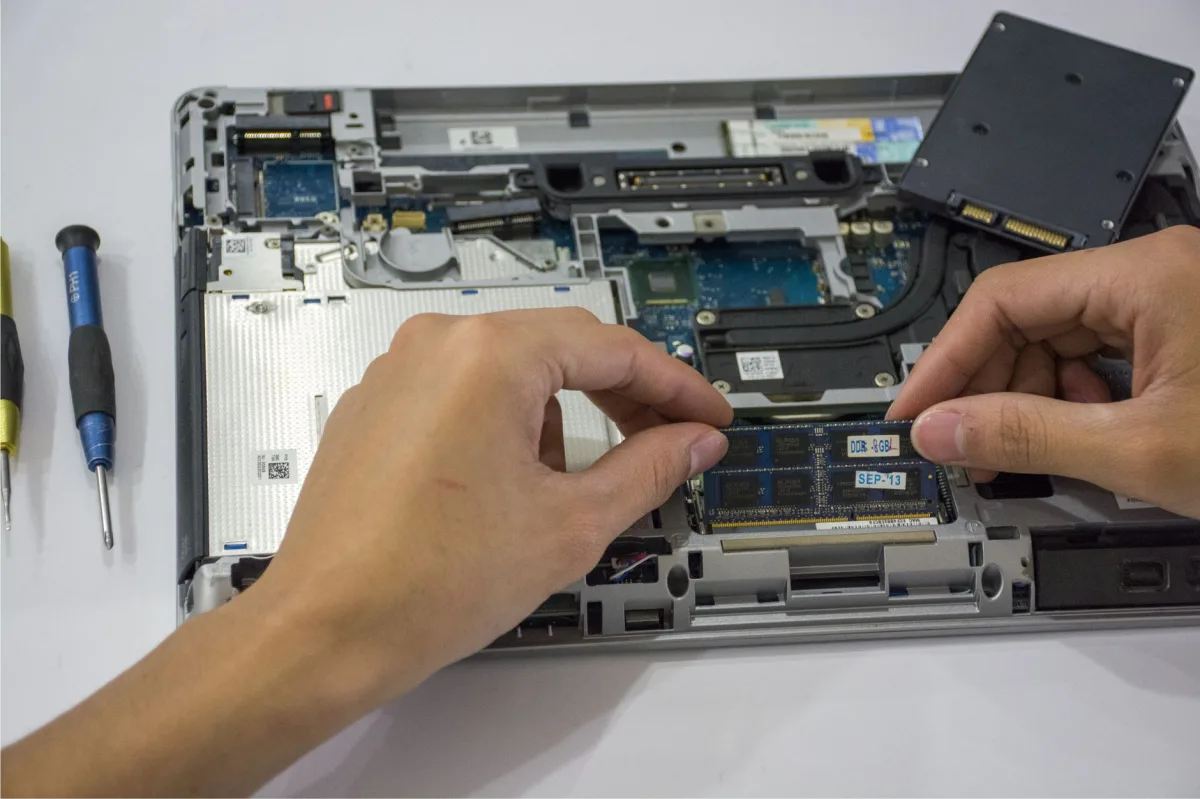
When my 2019 ultrabook took 35 seconds to open a 2‑GB Photoshop file, I realized the bottleneck wasn’t the CPU—it was the aging SATA SSD. Swapping it for a modern NVMe drive cut the load time to under five seconds and gave the battery an extra hour of life. If you’re staring at similar lag, the right SSD upgrade can revive a laptop without the cost of a new machine.
What Is an SSD Upgrade and Why It Matters in 2026
Defining SSD vs HDD
Definition: An SSD (Solid State Drive) stores data on NAND flash cells, offering near‑instant random access, whereas an HDD (Hard Disk Drive) relies on spinning magnetic platters and mechanical heads.
When to Upgrade
Typical triggers are:
- Storage capacity hitting 80 % of total.
- 4K video editing or game installations taking hours to copy.
- Visible latency when launching Office or Chrome.
Benefits in 2026
Modern NVMe drives deliver:
- Sequential reads up to 5 GB/s and writes up to 4.2 GB/s on PCIe 4.0 (e.g., Samsung 990 EVO).
- Lower power draw compared with SATA SSDs, extending battery life by up to 15 % in light workloads.
- Compact thermal designs that fit slim ultrabooks without extra cooling.
2026 Laptop Storage: Trends & Why SSDs Still Win

New PCIe 5.0 Reality
PCIe 5.0 SSDs promise >12 GB/s, but most laptops lack the thermal headroom. The Samsung 990 EVO (PCIe 4.0) hits 5 GB/s read while staying under 5 W, making it a safer bet for battery‑centric notebooks.
Heat & Battery Impact
PCIe 5.0 silicon runs hot enough to require a 5‑mm heatsink, which many thin chassis cannot accommodate. By contrast, DRAM‑less drives like the ADATA XPG Gammix S70 Blade use Host Memory Buffer (HMB) and stay cool, though their endurance is lower.
External SSD Revolution
Thunderbolt 4 and USB4 external enclosures now reach 2.8 GB/s, rivaling older PCIe 3.0 internal drives. For users who need occasional extra capacity, a portable unit such as the SanDisk Extreme Pro Portable SSD V2 can be swapped without opening the laptop.
Check Your Laptop First: Slots, Power, and Heat
M.2 vs SATA vs Proprietary
Identify the form factor before you order:
- M.2 2280 – the most common, fits 22 mm × 80 mm.
- M.2 2230 – found in ultra‑thin devices like the Microsoft Surface.
- 2.5″ SATA – still present in older business laptops.
Tools such as the System Scanner can list supported interfaces and maximum capacities.
Thermal Design & Heatsinks
If your service manual shows a heat‑spreader pad, apply a 1 mm thermal pad before seating the SSD. Avoid bulky aftermarket heatsinks unless you install a PCIe 5.0 model.
Power & BIOS Support
Older BIOS versions may not recognize drives larger than 2 TB or newer NVMe generations. Update the firmware from the manufacturer’s support page before installing.
Internal SSD Options: PCIe 4.0, 3.0, and HMB
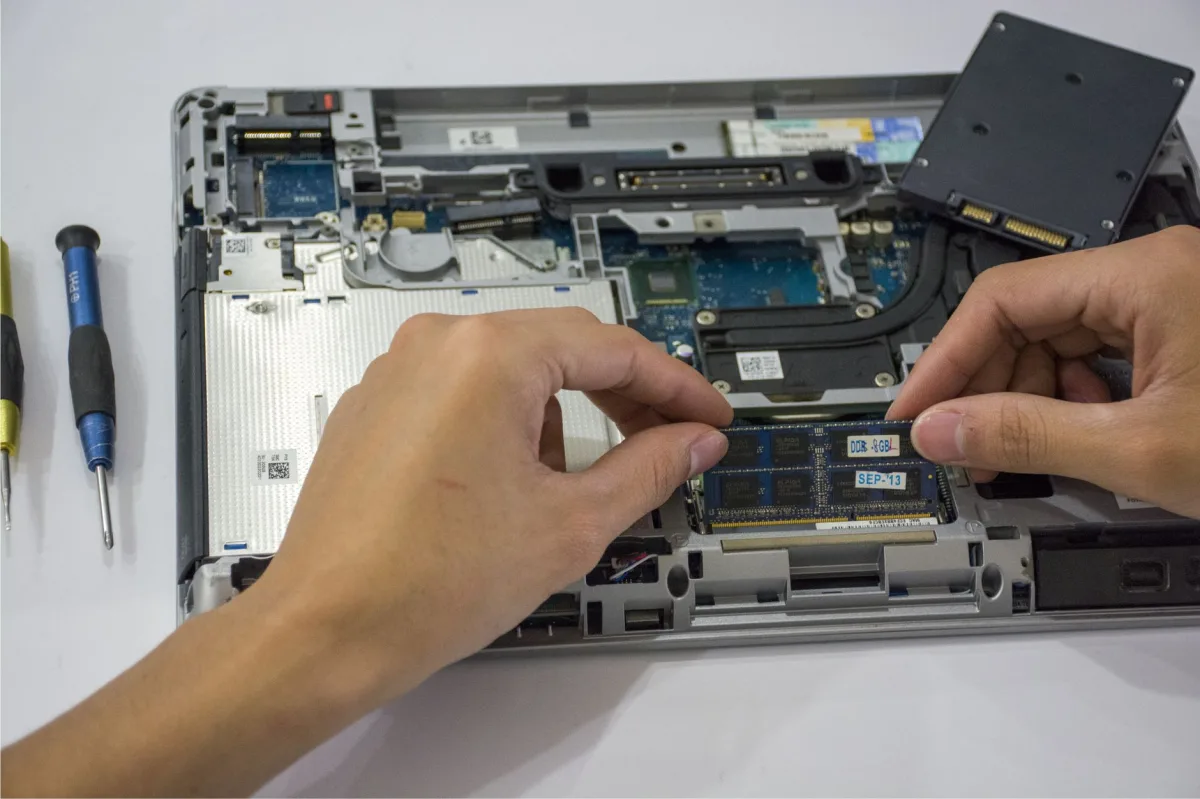
| Model | Interface | Key Specs | Price‑to‑Performance |
|---|---|---|---|
| Samsung 990 EVO | PCIe 4.0 x4 | 5 GB/s read, 4.2 GB/s write, TLC NAND, DRAM | High – best for creators |
| P3 | PCIe 3.0 x4 | 3.5 GB/s read, 3 GB/s write, TLC, DRAM‑less with HMB | Mid – solid everyday speed |
| ADATA XPG Gammix S70 Blade | PCIe 4.0 x4 | 6.5 GB/s read, 5.5 GB/s write, DRAM‑less, HMB | Low – budget‑friendly |
PCIe 4.0 NVMe (Samsung 990 EVO)
The 990 EVO’s DRAM cache keeps 4K random reads low, ideal for game load times and 4K video editing. Its power envelope stays under 5 W, so you won’t notice a battery hit during normal use.
PCIe 3.0 NVMe ( P3)
At 3.5 GB/s sequential reads, the P3 is more than enough for everyday Windows tasks. Its HMB implementation recovers about 90 % of DRAM performance while staying under 4 W.
DRAM‑less with HMB (ADATA XPG Gammix S70 Blade)
Although it lacks onboard DRAM, the Gammix S70 Blade leverages host memory to achieve respectable speeds, making it a cost‑effective upgrade for laptops that already have a decent CPU cache.
When an External SSD Beats an Internal Upgrade
Thunderbolt 4/USB4 SSDs (SanDisk Extreme Pro Portable SSD V2)
This enclosure reaches 2.8 GB/s, perfect for transferring large video files without opening the chassis. Its rugged case also doubles as a travel drive.
High‑capacity SD & microSD Cards (512 GB Samsung Pro Plus)
MicroSD cards like the 512 GB Samsung Pro Plus offer V30 and A2 ratings, delivering up to 100 MB/s sequential reads. They’re cheap, but still slower than NVMe.
USB Flash Drives & NAS Backups
Devices such as the 512 GB SanDisk Ultra Fit USB drive provide quick, plug‑and‑play storage for occasional overflow. For long‑term safety, mirror critical data to a NAS.
Best Practices for Moving Your Data
Clean Windows Reinstall vs. Clone
A fresh install removes legacy bloat and ensures drivers match the new hardware. However, cloning with Acronis True Image preserves all apps and settings in one step.
Using Acronis True Image
Connect the new SSD via a USB‑C enclosure, run the “Clone Disk” wizard, and select “Resize partitions automatically” to fit the new capacity.
Backup to Cloud or NAS
Apply the 3‑2‑1 rule: keep a local copy on an external drive, a second copy on a NAS, and a third off‑site backup (OneDrive, Google Drive, or Backblaze).
Step‑by‑Step Internal SSD Replacement
Tools & Safety Precautions
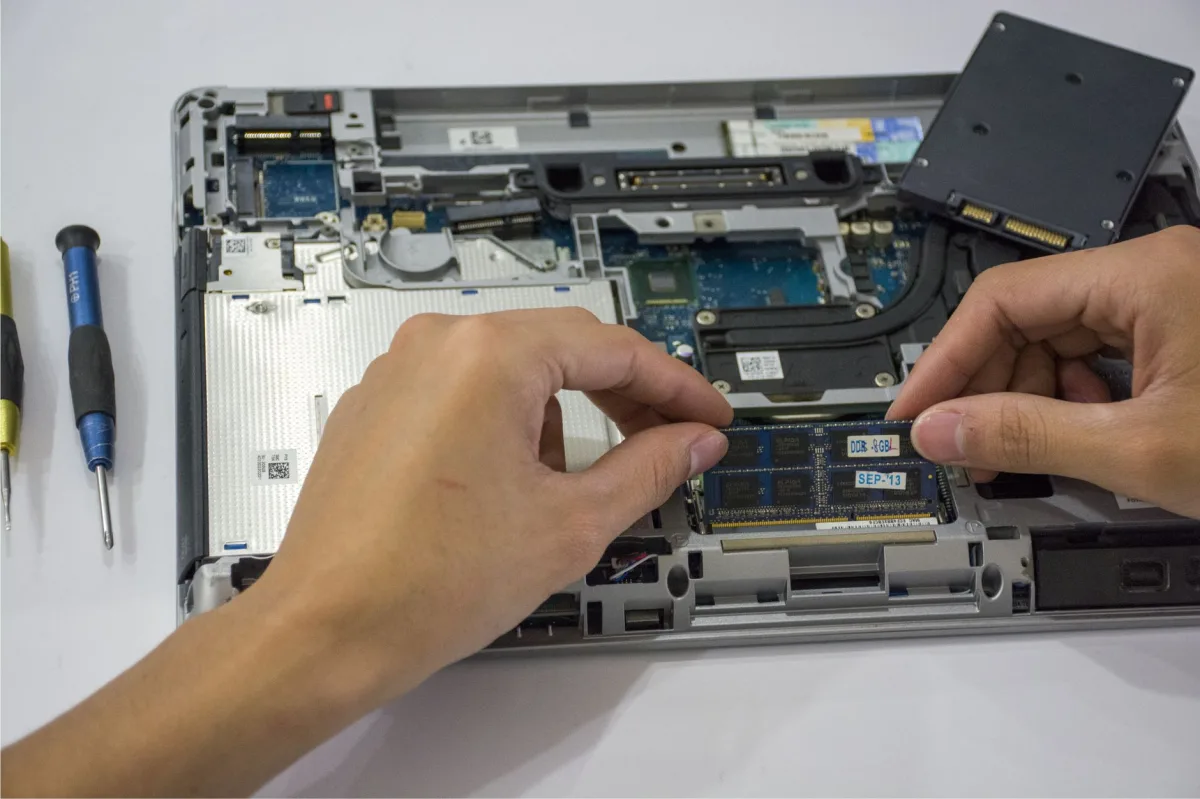
- Power down, unplug, and let the laptop cool.
- Remove the bottom panel with a #0 Phillips screwdriver.
- Disconnect the internal battery if a separate ribbon is present.
- Ground yourself on the chassis before touching the M.2 slot.
Physically Installing the M.2
- Locate the M.2 socket; note the key (M or B+M).
- Insert the SSD at a 30° angle until the notch aligns.
- Press gently and secure with the standoff screw—snug, not overtightened.
- If a heatsink is provided, place a 1 mm thermal pad between the drive and the metal backplate.
BIOS & Driver Setup
Enter the BIOS (usually F2 or Delete), enable “NVMe Configuration,” and set the new drive as the primary boot device. Save and exit, then install the latest NVMe driver from the SSD vendor’s website (e.g., Samsung Magician).
Real‑World Performance & Trade‑offs
Speed Benchmarks
| Drive | Seq. Read | Seq. Write | 4K Random Read | 4K Random Write |
|---|---|---|---|---|
| Samsung 990 EVO | 5 GB/s | 4.2 GB/s | 1.2 GB/s | 1.0 GB/s |
| P3 | 3.5 GB/s | 3 GB/s | 650 MB/s | 600 MB/s |
| ADATA XPG Gammix S70 Blade | 6.5 GB/s | 5.5 GB/s | 580 MB/s | 540 MB/s |
Battery Life Impact
PCIe 4.0 drives draw roughly 4–5 W under load, only a few percent more than PCIe 3.0 equivalents. In idle, power consumption drops below 0.5 W, preserving the laptop’s advertised battery runtime.
Heat & Longevity
Thermal throttling becomes noticeable only when sustained writes exceed 500 MB/s for more than ten minutes on a DRAM‑less drive. Using a thin thermal pad mitigates temperature spikes, extending TBW (Terabytes Written) life.
Choosing the Right Upgrade Path for Your Persona
| Target Persona | Recommended Option | Key Reason & Real‑World Benefit |
|---|---|---|
| Gamers | Samsung 990 EVO 1 TB | Fast load times, low latency for large game assets, DRAM cache prevents stutter. |
| Content Creators | P3 2 TB | Ample space for 4K footage, PCIe 3.0 sufficient for editing, cost‑effective. |
| Business Users | ADATA XPG Gammix S70 Blade 1 TB | Budget‑friendly, HMB provides enough performance for Office and virtualization. |
| Students | External SanDisk Extreme Pro Portable SSD V2 1 TB | Portable, no warranty risk, easy to swap between dorm laptops. |
Avoid These Pitfalls
Installing the Wrong Interface
Double‑check whether the slot is SATA or NVMe. A SATA‑only M.2 will reject a PCIe 4.0 drive, forcing a return.
Ignoring Heat Management
Skipping the thermal pad on a PCIe 4.0 SSD can raise temperatures by 10 °C, leading to throttling after 15 minutes of sustained writes.
Skipping Firmware Updates
Older BIOS versions may not recognize drives larger than 2 TB. Updating the firmware before installation prevents “No boot device” errors.